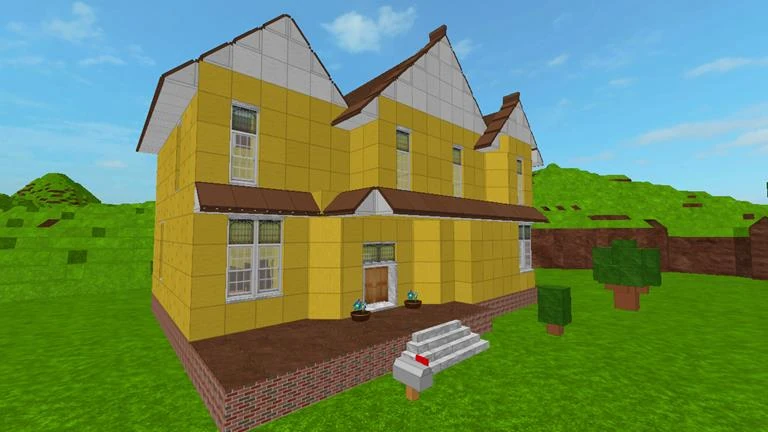

The house which once was the default place template.
On Roblox, building is a process of editing and assembling parts to form a model or a world in a place. Modelling is a more specific term for creating a model that resembles a real-world counterpart. Roblox Studio facilitates this process for developing a place, although other software may be used, such as Blender for creating meshes to be used in MeshParts.
Users have created building places on Roblox which provides visitors with in-game building tools. There are popular plugins created by users that provide additional building tools for Roblox Studio, such as Building Tools by F3X, which is also used in many building places. Some in-game building tools also have an export feature that allows built models to be used in Roblox Studio.
History
In the early years of Roblox, building was more restrictive compared to today. Snapping and collisions, even in Roblox Studio, were forced when using the built-in building tools or editing through the Properties window, preventing any parts from overlapping with each other. Parts were also restricted to 3 axes (90 degrees of rotation) when using the building tools. Both of these restrictions could be circumvented by editing the parts' CFrame using Lua, through scripts or the command bar. In-game building tools were made to simplify this process and were known as CFrame tools. The sizes of parts were also restrictive, even through Lua. This was controlled by FormFactor, an enum that is based on the sizes of LEGO pieces. The only way to customize this was to save the instances to a file and edit its XML contents. However, an easier method was to parent a SpecialMesh to a part and set its Scale property, although the parts' hitboxes would remain the same.
Parts
Building tools generally give the user the ability to move and change a part's properties. Most building tools have a user interface containing a set of tools, each having a specific function and often being selectable through a hotkey. Building tool designs commonly use 3D GUI elements (e.g. selection box and handles), making it easier to select and edit a part. Building tools may also allow the selection of multiple parts to be moved and edited simultaneously.
Models
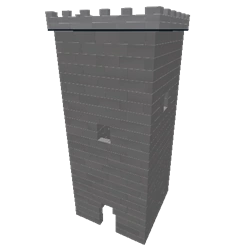

A model of a tower.
Models are used to group parts and other instances such as scripts or even other models. Like Folders, models are often used to organize parts and other instances. Unlike folders, if a part in a model is clicked on, the model will be selected instead of the individual part, unless ⎇ Alt is held down. This is the default functionality in Roblox Studio and most other building tools also have this functionality.
Properties
Some properties allow changing a part's appearance: Color (Color3 or BrickColor), Material, Transparency and Reflectance. These properties can be edited in most building tools.
The Locked property determines if a part can be selected (and edited). The property is often used in building places to prevent abuse and is supported by most building tools both in-game and as plugins. Roblox Studio provides the Lock tool to lock selected parts. Most other building tools also provide this tool.
Parts have two physical properties. The Anchored property prevents parts from falling or being moved. This provides a base for buildings. The CanCollide property toggles collisions of parts and is often used for doors. If both are turned off, forces or constraints may be used to prevent parts from falling into the void.
Decals/Textures

 Decals and
 Textures are used to place images onto a part's surface. Most building tools allow adding a decal or a texture and inputting an image's ID. Textures are a way of adding texture maps. Custom PBR materials also do this but with more functionality.
Terrain
Roblox Studio provides tools to edit terrain which can be accessed through the Terrain Editor window. Plugins and in-game building tools may also include the ability to edit terrain as well. Some games allow manipulation of terrain such as Attrition.
Roblox Studio
Roblox Studio provides a variety of built-in tools to manipulate parts without having to do it from the Properties window. The most basic tools are:
- The Select tool, the Move tool, the Rotate tool and the Scale tool. These tools are found in the toolbar as "Tools".
- The Transform tool is an additional fifth tool that combines all of the tools' functions (moving, rotating and scaling). Using any of the tools allows for selecting and dragging parts.
The tools can be quickly selected using the hotkeys (holding down Ctrl and then a corresponding number). Three other options next to these tools change how the tools function:
- The first option has two modes ("Geometric" for default functionality and "Physical" which simulates physics for parts' constraints),
- The second option toggles collisions,
- The third option toggles the automatic welding of parts to other parts that have touching surfaces.
The toolbar "Snap to Grid", next to "Tools", has two options that change how the tools manipulate the parts by studs and degrees, allowing parts to be more aligned with each other. Both of these options can be toggled.
Other tools for manipulating parts can be found in the "Edit" toolbar, which includes:
- the Color tool (to change the color of a part),
- the Material Manager tool,
- the Anchor tool (to prevent parts from falling or being moved),
- the Lock tool (toggles the Locked property of selected parts to prevent them from being selected)
- And the Group tool. Roblox Studio provides a shortcut to group (Ctrl + G) selected parts into models and a shortcut to ungroup (Ctrl + U) them as an alternative to the Group tool's function. The context menu from the Explorer or the Place also does this.
Models have exclusive properties that can only be set in Roblox Studio. The properties allow changing the level of detail, streaming mode and scale of a model.
In addition to some options available in the menu, there is an axis widget that can be used to quickly find the position of the X or the Z axis, and there is a 3D grid that can be used to quickly find the height of the position zero and to build parts on it. These two tools are rarely used, but they can be useful to identify which axis is the X axis and which is the Z axis.
Exporting
While Roblox Studio does not support the ability to import models built in a Roblox server, few in-game building tools are known to have an export ability that allows exporting built models from a Roblox server into Roblox Studio through HTTP and plugins, which requires HTTP requests to be enabled on both sides.
Gallery
Toolbars


Parts


References
| Programming |
| ||||||
|---|---|---|---|---|---|---|---|
| Design | |||||||
| Assets | |||||||
| Tools | |||||||
| Monetization | |||||||
| Analytics | |||||||
| Advertising | |||||||
| Resources | |||||||
| Corporate | |||||||||||||||||||
|---|---|---|---|---|---|---|---|---|---|---|---|---|---|---|---|---|---|---|---|
| Software |
| ||||||||||||||||||
| History | |||||||||||||||||||
| Website |
Account settings · Avatar Editor · Banner · Character · Comments · Community · Friends · Discover · Error · Inventory · Messages · My Feed · My Transactions · Notify · Personal Server · Private server · Profile · Roblox badge · Verified Badge · Friends chat · Party · Website Background | ||||||||||||||||||
| Currency | |||||||||||||||||||
| Membership | |||||||||||||||||||
| Merchandise | |||||||||||||||||||
| |||||||||||||||||||
| |||||||||||||||||||
| |||||||||||||||||||
| Italicized links indicate pages with a discontinued subject. | |||||||||||||||||||