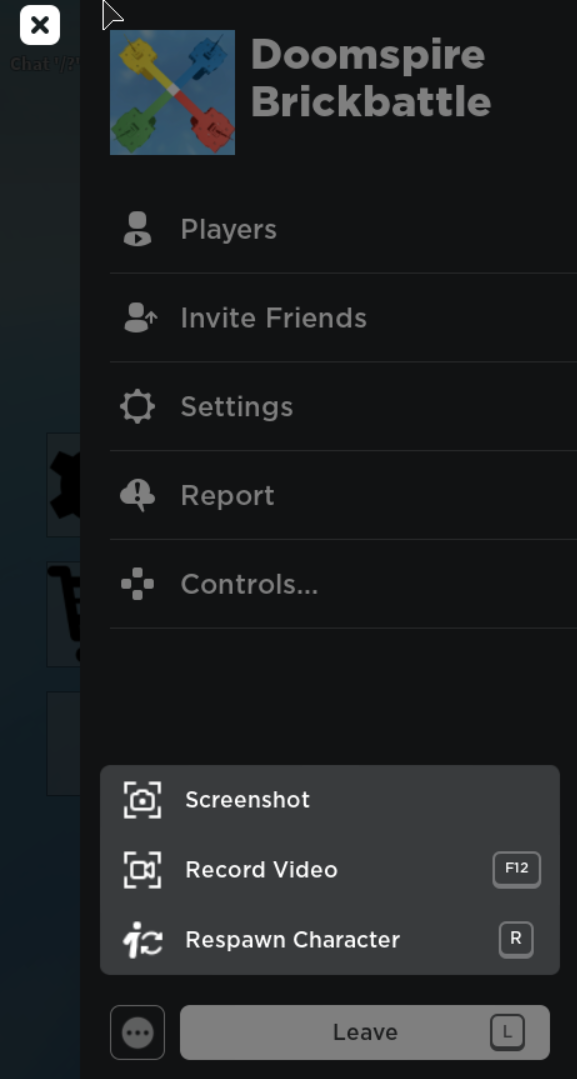

Pressing the three dots will have this come up.
The Screenshot button was found in the Roblox menu in-game, allowing players to take pictures by clicking on "Screenshot". You can still use the old screenshot feature by pressing the Print Screen key on Windows, or use ⌘ Command + ⇧ Shift + 3 on macOS.
This is being phased out in favor of the Captures function.
Decals
Taking screenshots was a very useful way to make Decals, as you could take screenshots, make any necessary edits, and then make an upload. You could take as many screenshots as you want, but it's important that you only take the ones that you need to save disk space. You could also make Decals of objects with a transparent background by using a green screen brick and then editing out the green.
Reporting
Screenshots could be useful as proof against or for a claim. Reporting to the creator of a game or to the Roblox official contact email with a screenshot is the most you can do to show proof of anything inappropriate.
Gallery
