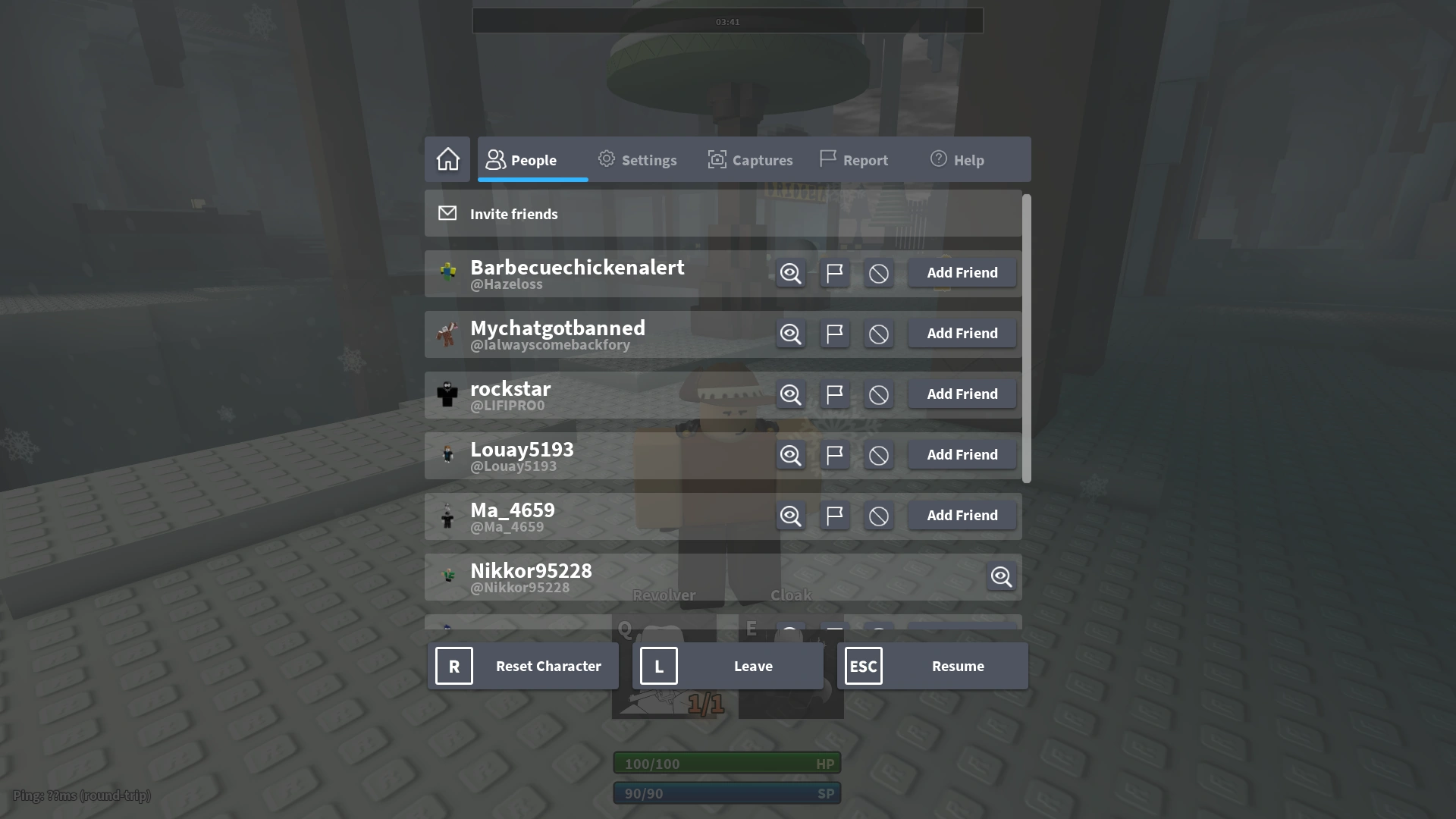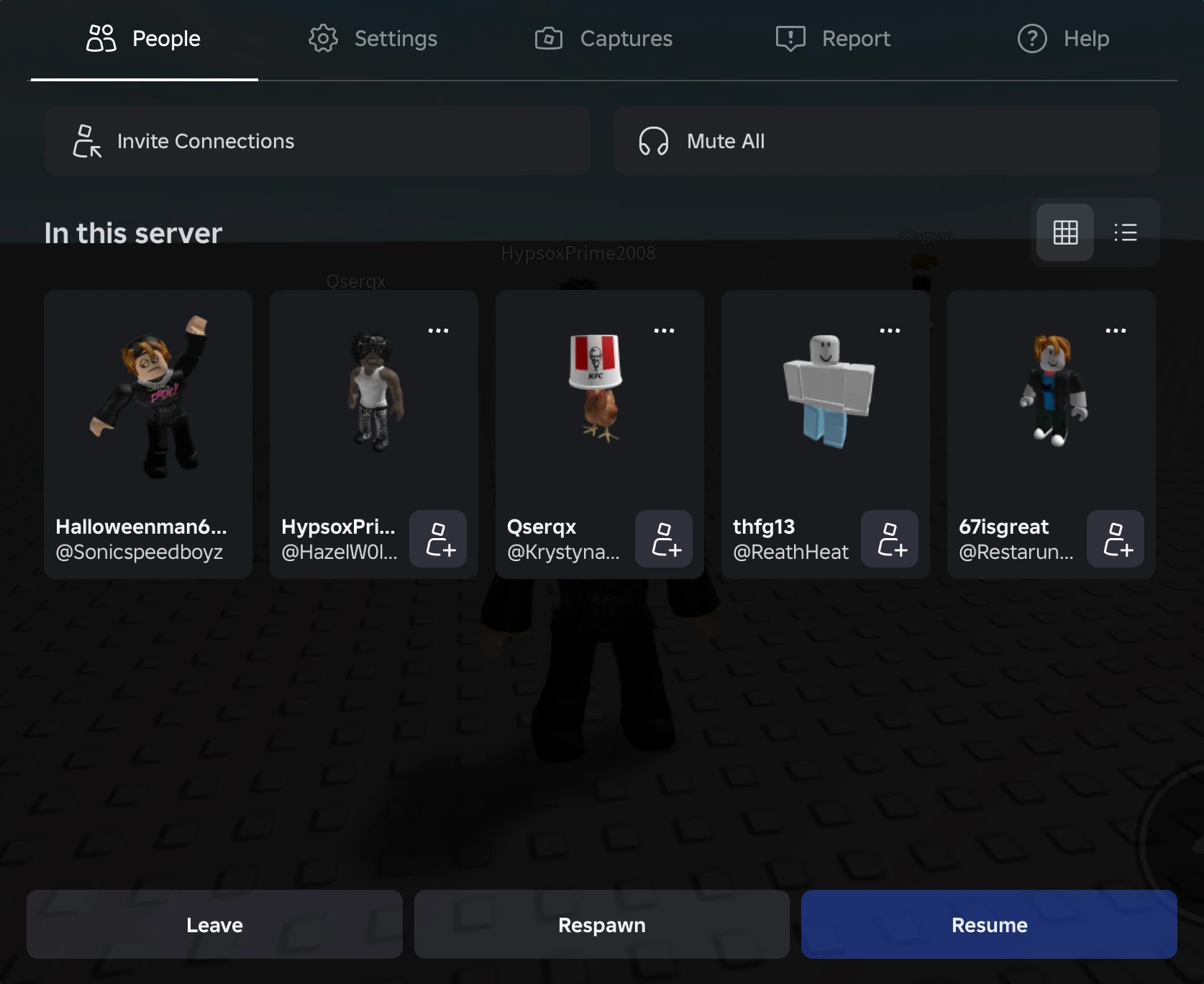
The current menu as of January 17, 2026.
The menu is a Roblox feature in-game that gives players options and functions, and the ability to see game details in the V3 menu which is not available in other versions. The hotkey for it is Esc.
Menu
X button
The X Button is no longer necessary. This button exits the user from the menu and lets them resume the game. This was replaced by "Resume". It was later returned in the 2020 top bar update with the X button in the top-left when the menu is displayed because the V2 and V3 menus have no Resume button. The V1 and V4 menus have the Resume button which co-existed with this button.
Leave
This button exits the game, disconnecting the player from the server they were on and firing the PlayerRemoving event. After clicking the button, there is another message to confirm if they want to leave. The hotkey for it is L. Alternatively, players can press the X at the top right of the window to close it. (May vary depending on other operating systems)
Home button
Similar to the leave game button, but unlike said button, this returns the player to the Roblox homepage. It was available on menu versions v1-v3 & v4 until June 2023.
Respawn character
This button kills the user's character by setting their Humanoid health to 0, followed by respawning (if not disabled). Like the Leave button, there is a confirmation message when the user clicks the button. The hotkey is R. This was originally called "Reset character" before the menu was revamped in May 2020.
Settings Menu
Shift Lock
When this option is on, the hotkey to activate Shift Lock is enabled. Shift Lock switches the camera's focus point from the player to the mouse. It will make the player move as if they were in first person while being in a third person view.
Camera mode
This option will switch the camera mode between Follow, Classic, CameraToggle, and Default (Classic). This option would be greyed out if the owner disabled changing camera modes.
- Follow - Rotate with the player as the user moves to the left and right.
- Classic- Attach to the player, and will not rotate as the user walks to the left and right.
- CameraToggle - Lock the mouse to the middle of the screen and shift the camera upwards, offsetting it, and will act as if the player is pressing the right mouse button to other players. Press the RMB to activate this mode after it is selected, but the player must note that it will also glitch shift lock if both are activated at the same time.
Note: Any changing of the camera, like rotating the camera and zooming, will revert the camera mode to Classic.
Movement mode
This option will switch the movement type between Keyboard, Keyboard + Mouse, and Click to Move. This option would be greyed out if the owner disabled changing movement modes.
Mouse sensitivity
This option switches how fast the mouse moves. One bar being the slowest, and ten bars being the fastest.
As of May 2020, the player can no longer use decimal mouse sensitivity such as 0.25 as it will turn back into 0 when the player presses Enter.
Volume
This option changes how loud the volume is. One bar is the quietest, and ten bars are the loudest. No bars being mute.
Full screen
This option toggles the game from fullscreen mode to windowed mode.
Graphics mode
This option allows the player to change the quality of the game's graphics between manual, and automatic.
- Manual: Allows the user to change the Graphics Quality slider.
- Automatic: Automatically determines the best graphics quality based on the performance of the device.
Graphics quality
This option, as long as the graphics mode is set to manual, allows the user to adjust the graphics quality of the game. One bar is the lowest quality, and ten bars are the highest quality.
Report
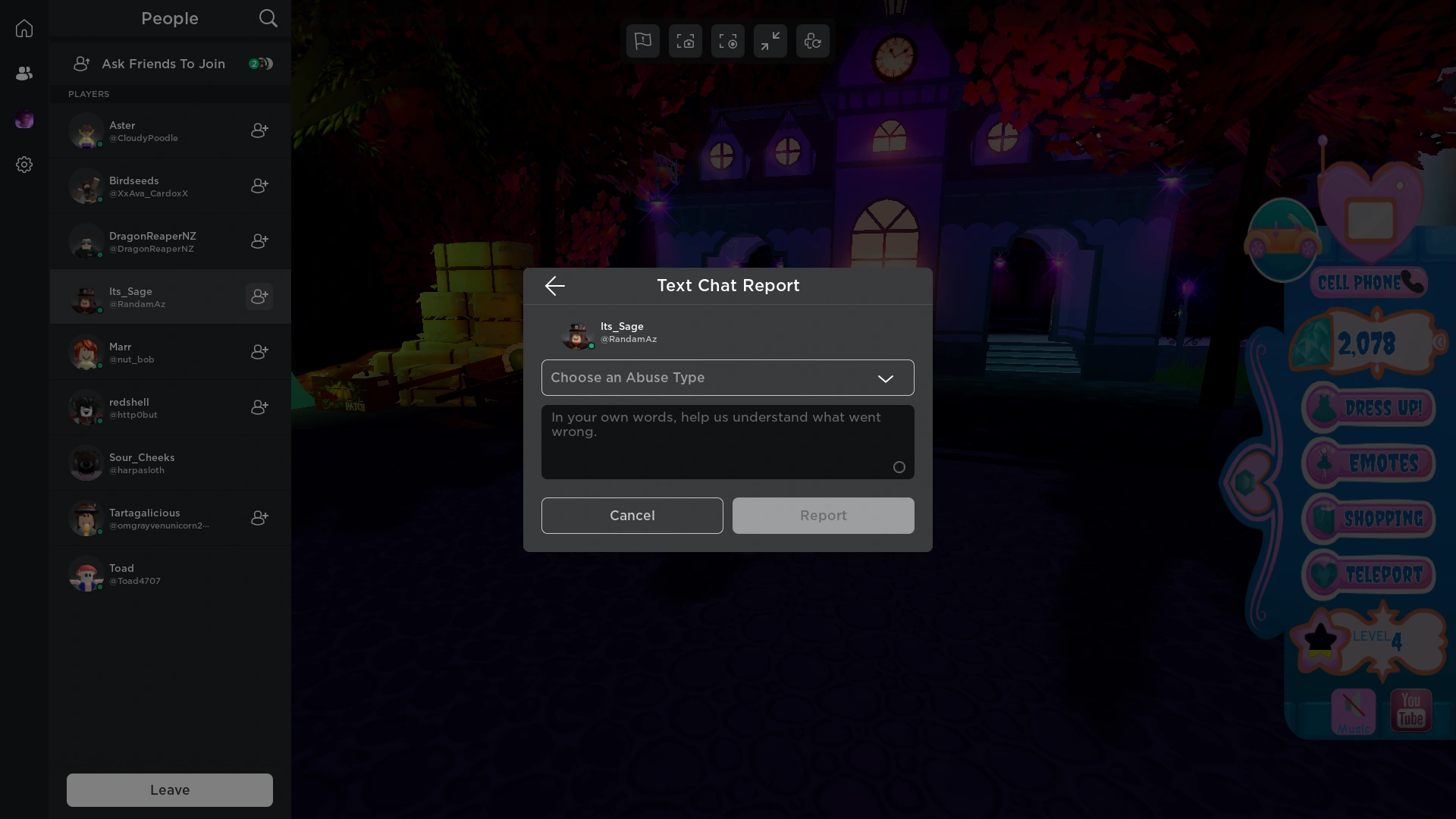
The Text Chat Report menu
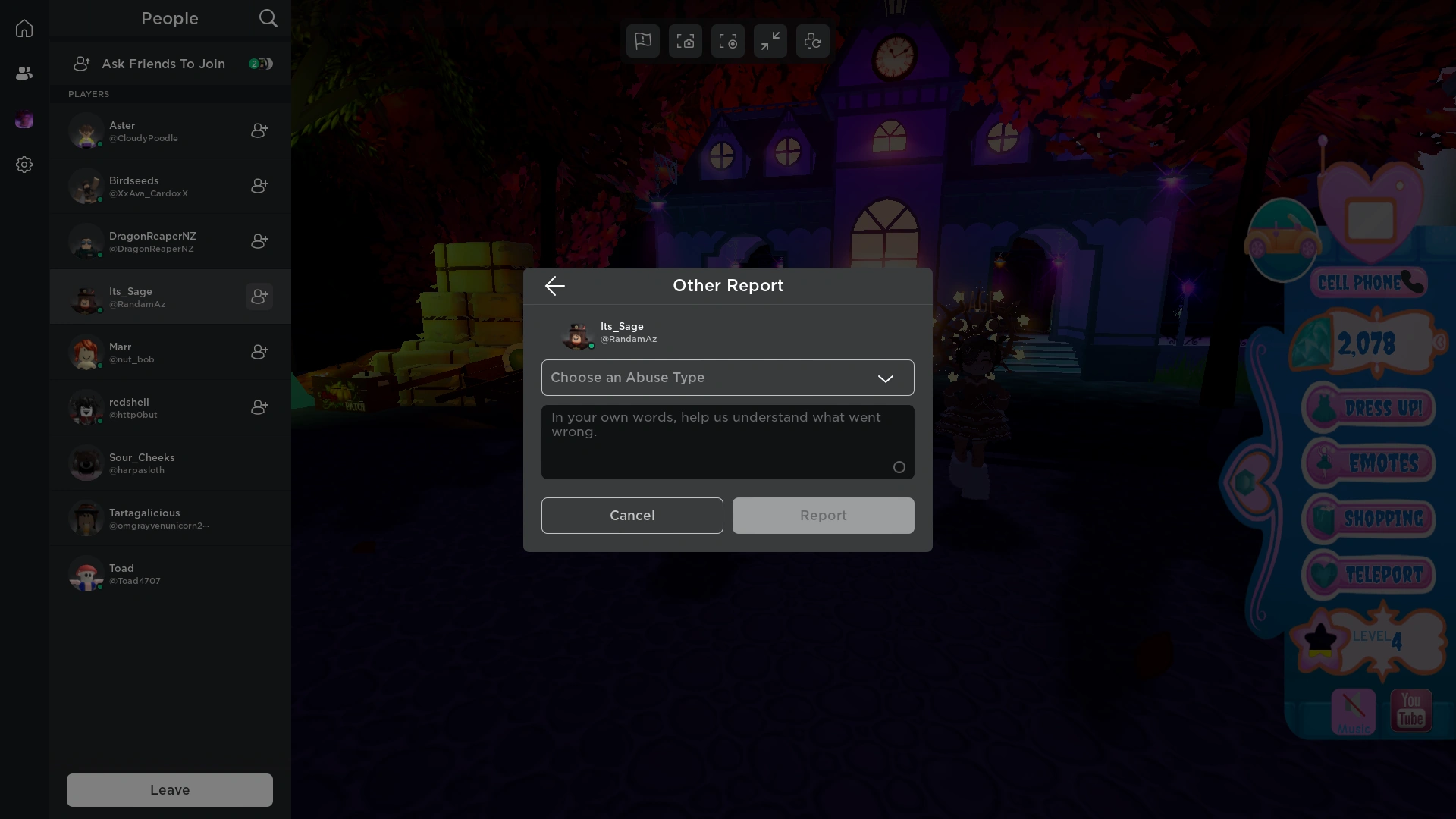
The Other Report menu
This category is for reporting any player or the game they're playing for breaking the rules. It displays three different fields which are "Experience or Person?", "Which Person?", "Type Of Abuse", and a short description of what is being reported. When reporting a player the field will become available and the user will need to select which player they want to report.
As of 2022, you can report either Text Chat, Experience, or Other. For Text Chat or Other, the user will need to select which player they want to report.
As of 2024, there is a new feature to report an inappropriate avatar. To use this function, a person clicks the part of the avatar which is inappropriate. It is in beta, and is for 13+ and above rated games.
Help
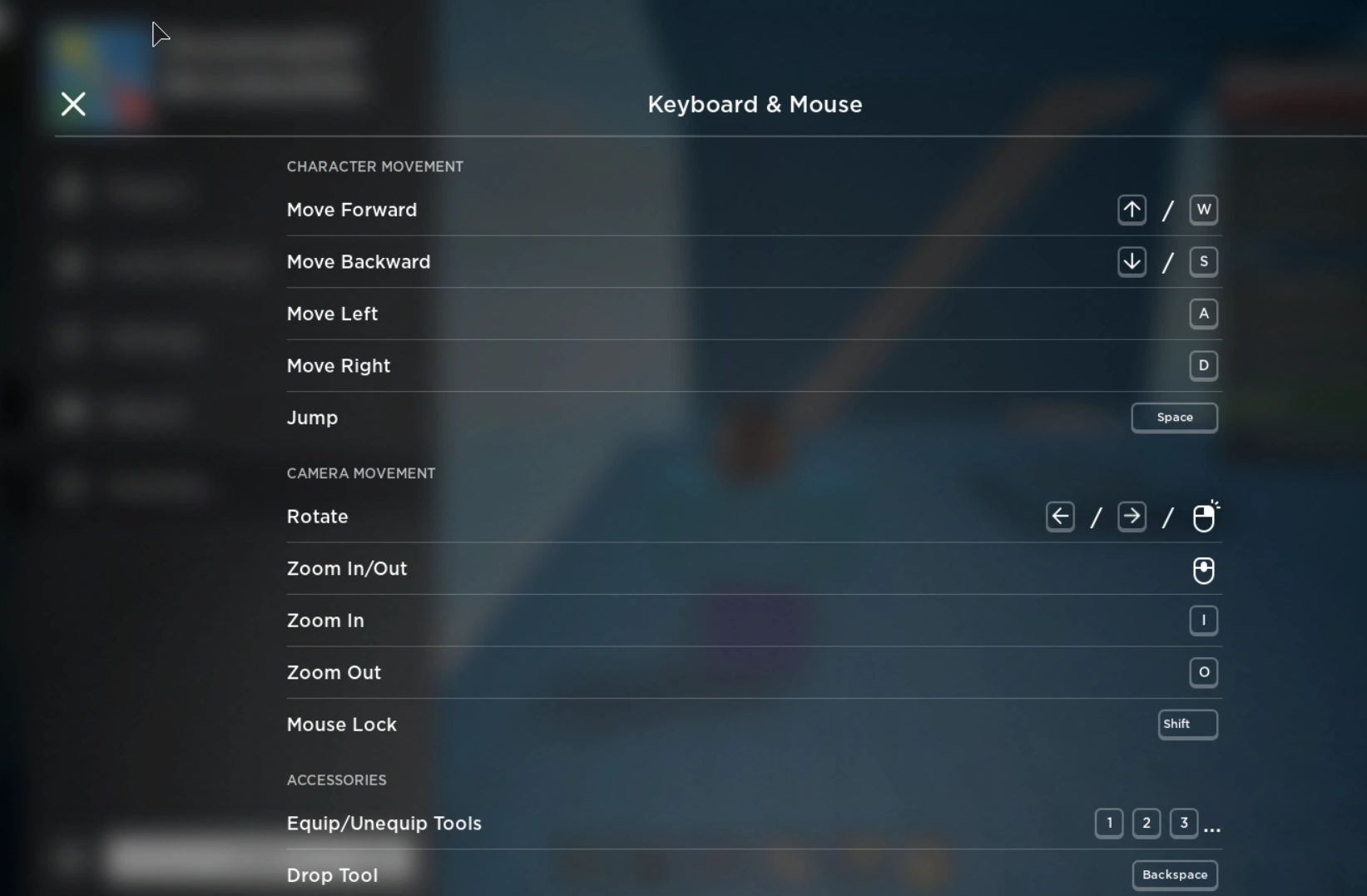
The Controls category
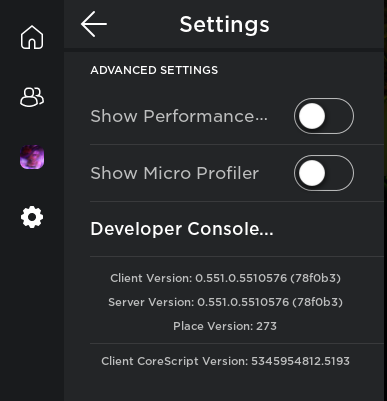
The Advanced Settings with Client Version, Server Version, Place Version, and Client CoreScript Version
This category displays the controls for Roblox, and it will show what Client Version, Server Version, Place Version, and Client CoreScript Version.
As of 2022, the Help menu was split. The Controls are now inside the experience settings and the Client Version, Server Version, Place Version, and Client CoreScript Version are now part of the settings under the Advanced Settings category.
Record and capture a screenshot
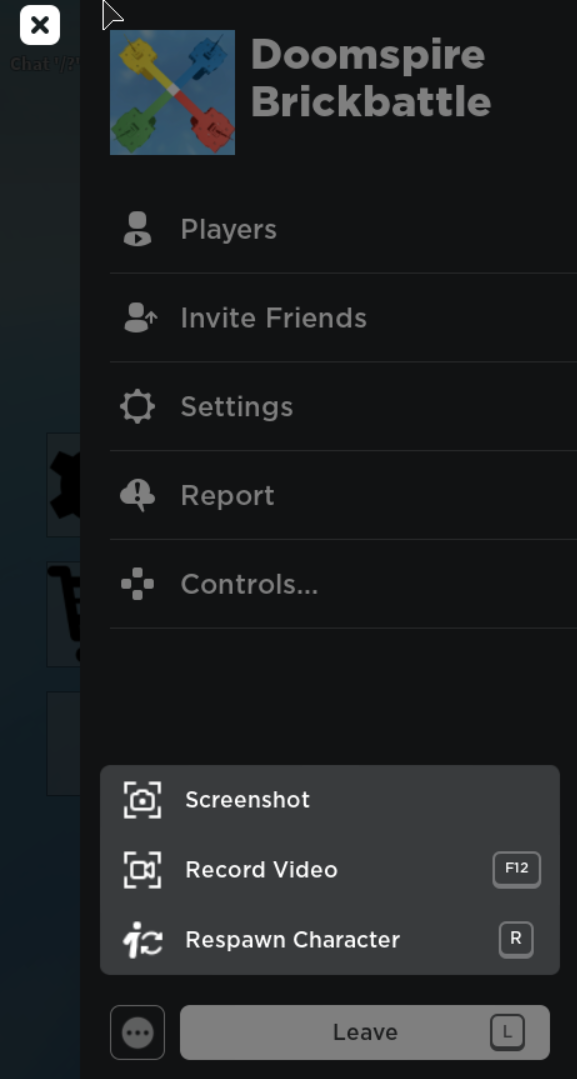
This category allows the user to take a screenshot or record a video.
Gallery